
PhotoRobot Controls funktsioonitaotluste kasutusjuhend
See kasutusjuhend on juhend PhotoRobot Controls funktsioonitaotluste tahvli kasutamiseks. Juhend kirjeldab tahvlile juurdepääsu ja selle lugemist, olemasolevate taotluste hääletamist, uute taotluste esitamist ja taotluspiletite jälgimist. Uurige, kuidas kõik töötab ja kuidas saate kohe osaleda, et aidata kujundada PhotoRobot Controls arendust.
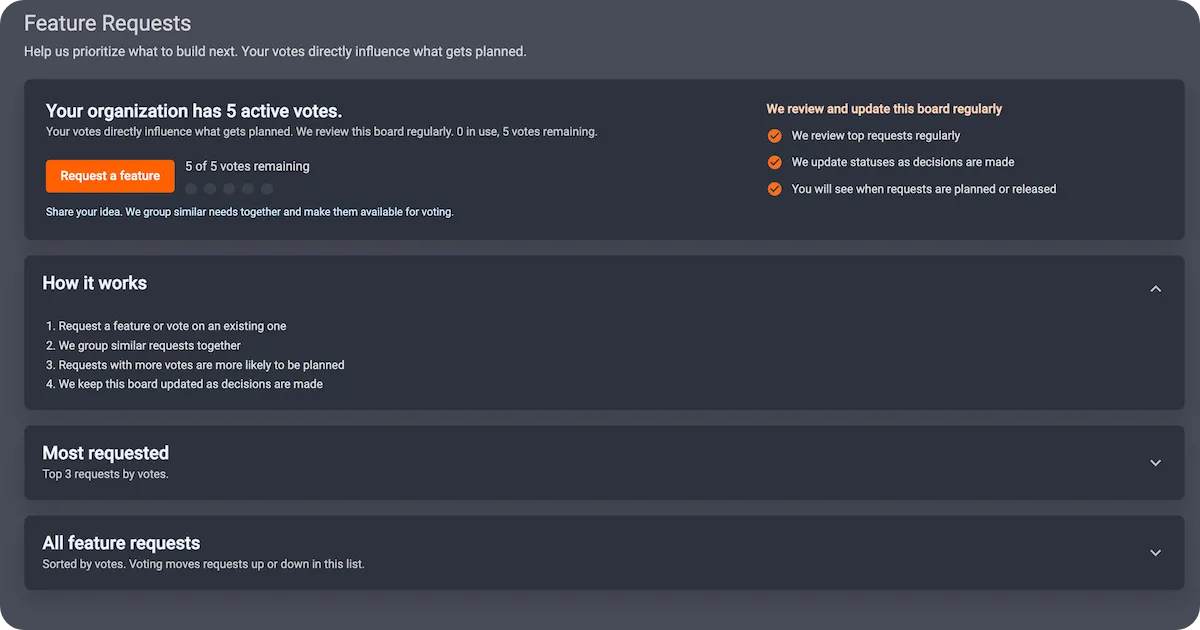
1 - Kuidas avada funktsioonitaotluste tahvel
PhotoRobot Controls funktsioonitaotluste tahvlile juurdepääsuks logige sisse PhotoRobot'i kontole ja navigeerige tugiliidesesse.
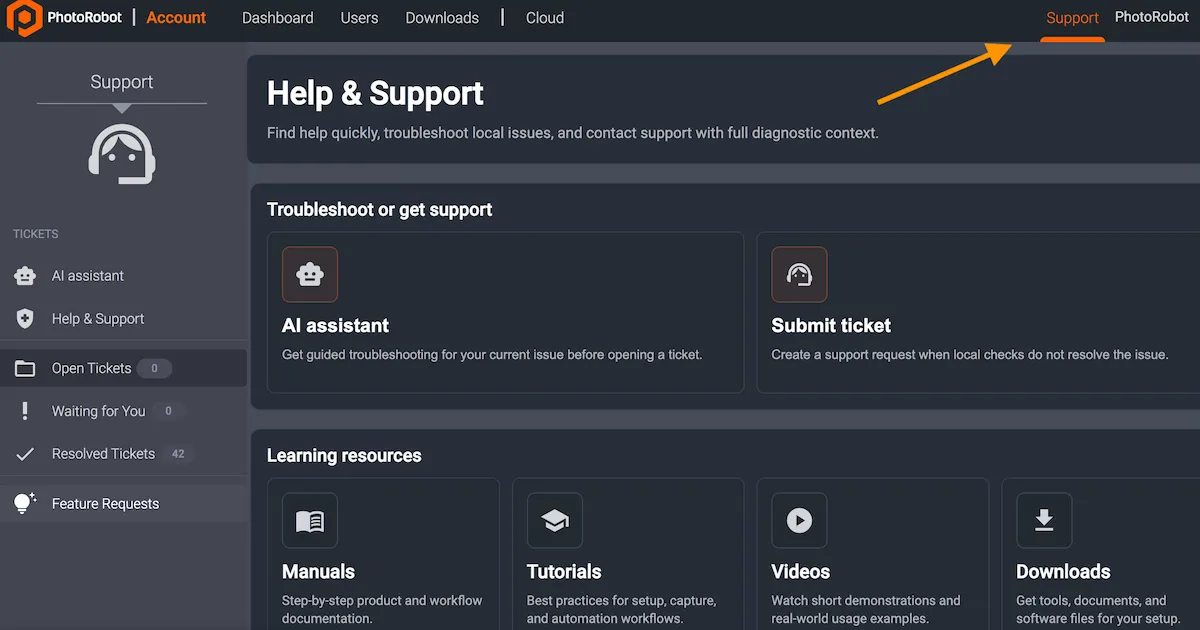
- Märkus: Kui kasutate CAPP-i kohalikku versiooni, klõpsake esmalt Tugi ja seejärel Esita pilet. Toe liides avaneb rakenduse veebiversioonis.
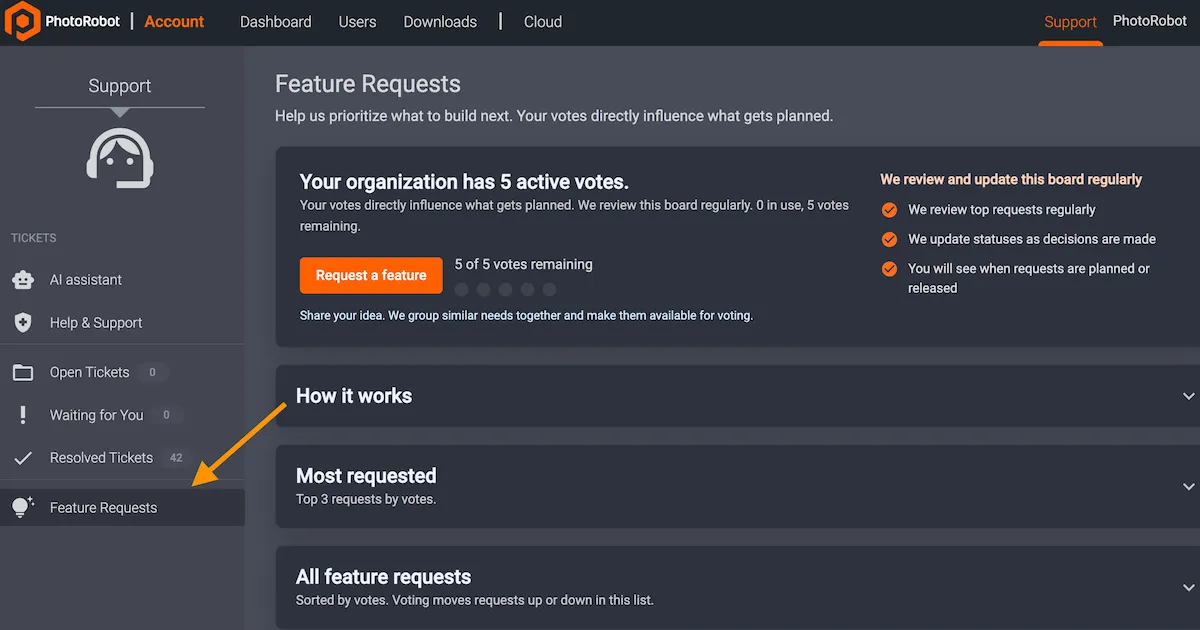
Järgmisena, veebirakenduse tugiliideses, vajuta vasakul külgribal Funktsioonipäringid . See avab liidese funktsioonide päringute tahvlile.
2 - Kuidas lugeda funktsioonide päringute tahvlit
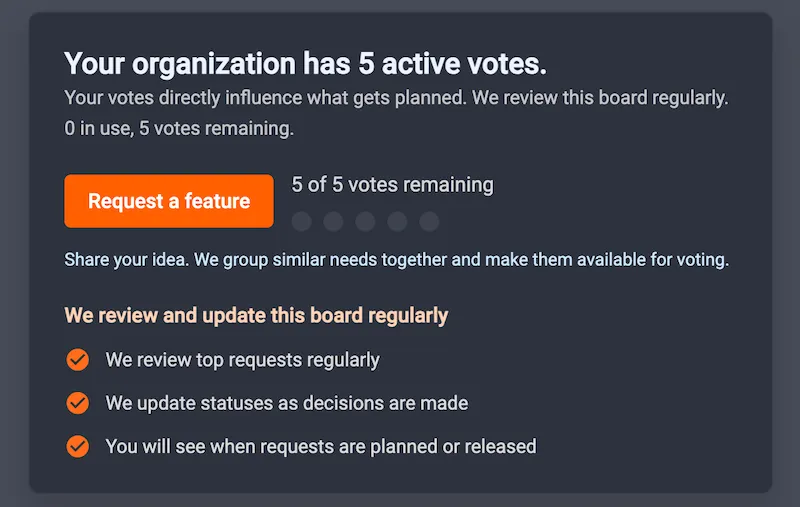
PhotoRobot Controls funktsioonitaotluste tahvel CAPP-is on liides, mis sisaldab nelja paneeli. Ülevalt alla kuvavad paneelid teie aktiivseid hääli, kuidas see töötab, enim taotletud ja kõik funktsioonitaotlused.
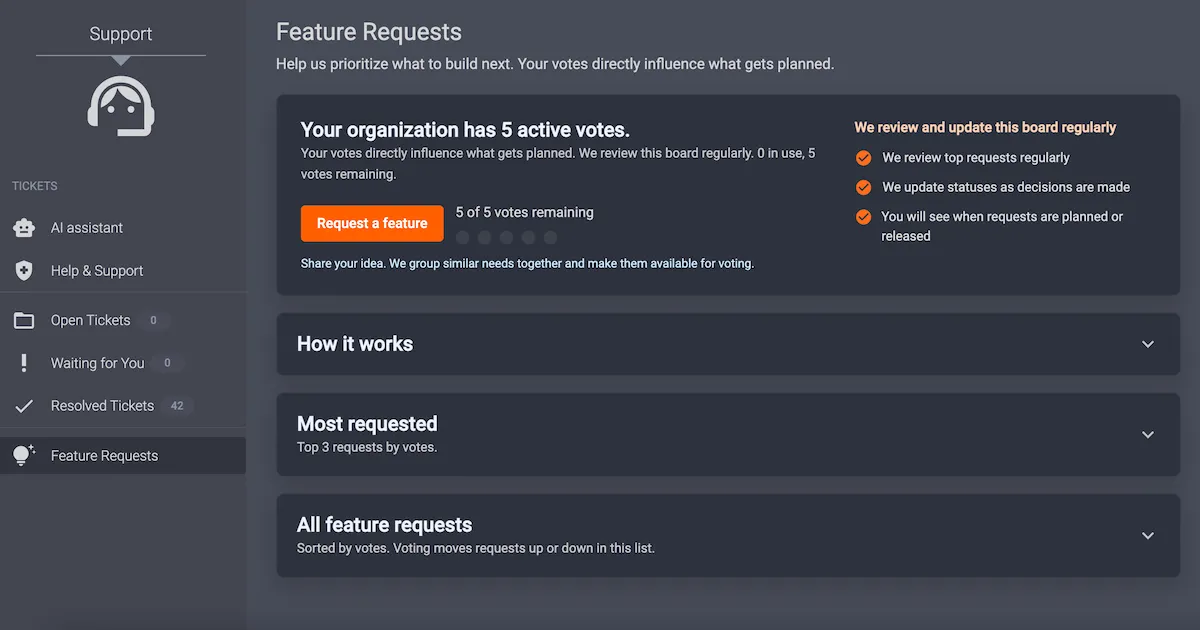
Aktiivsete häälte paneel
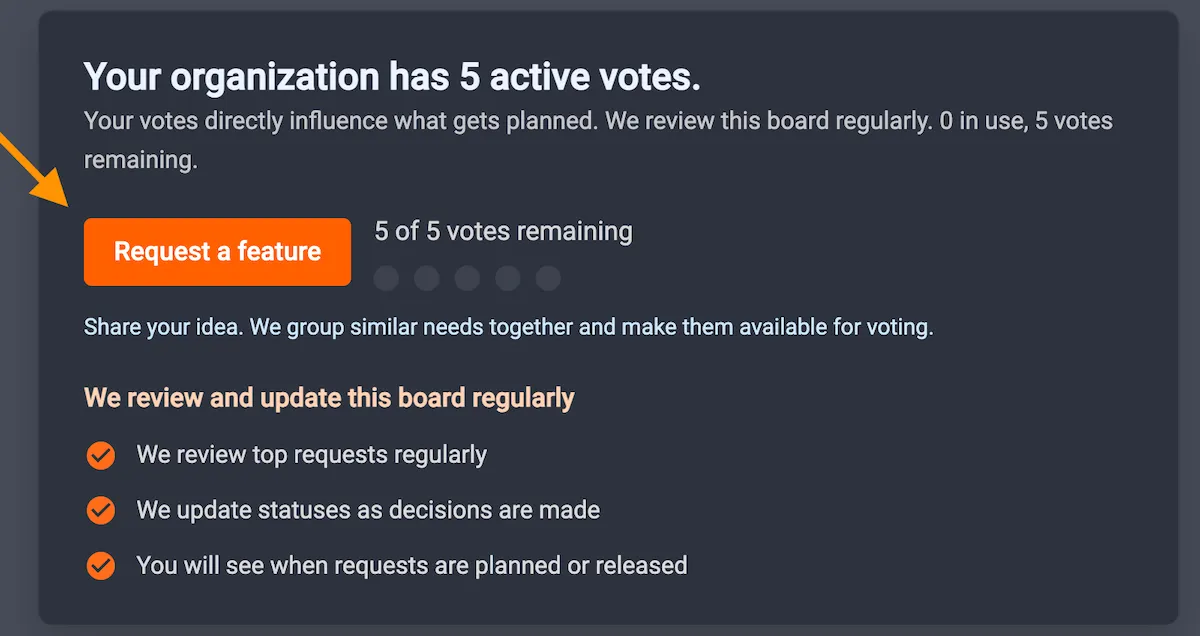
Põhipaneelil kuvatakse teie organisatsiooni aktiivsed hääled koos teie allesjäänud häälte koguarvuga ja see võimaldab teil esitada uue funktsioonitaotluse. See lisandub teabele taotluspiletite läbivaatamise ja aruandlusprotseduuri kohta. Iga organisatsioon saab kokku 5 häält, mida nad saavad kasutada olemasolevate taotluspiletite hääletamiseks või uue funktsioonitaotluse esitamiseks. Aktiivsete häälte koguarv kuvatakse funktsiooni taotlemise nupu kõrval.
Kuidas see töötab paneel
Klõpsa paneelil "Kuidas see töötab ", et avada rippmenüü, mis kirjeldab nelja sammu funktsioonide taotlemiseks, nende ülevaatuseks ja rakendamiseks.
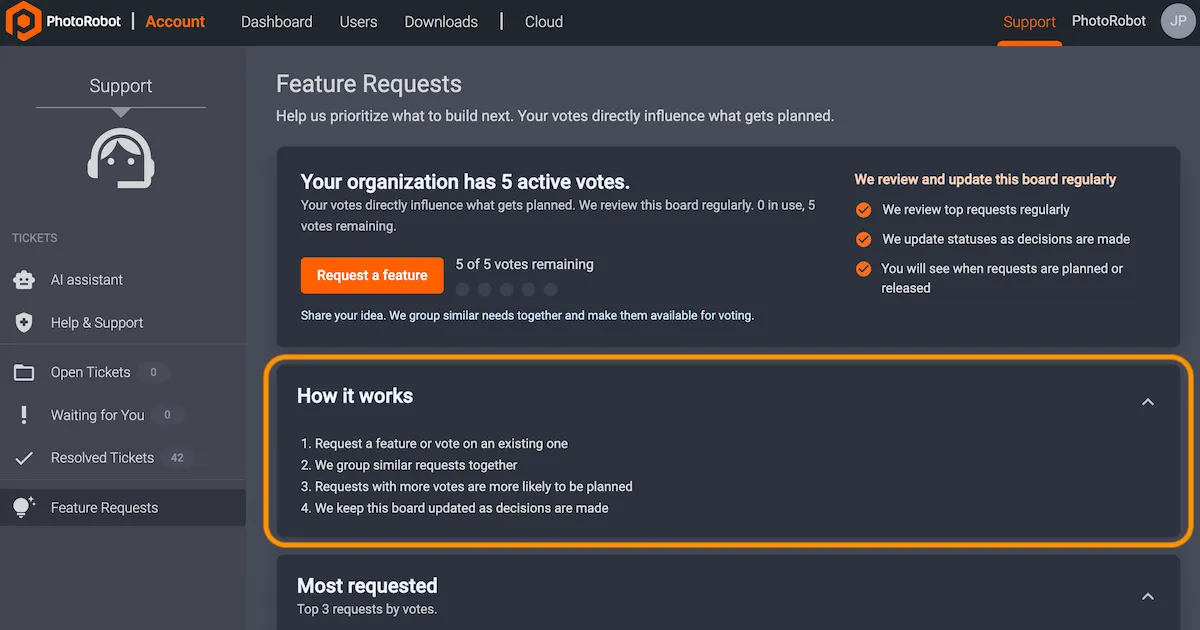
- Taotle funktsiooni või hääleta olemasoleva poolt.
- PhotoRobot grupeerib sarnased taotlused kokku.
- Suurema häältesaagiga taotlused jõuavad tõenäolisemalt planeerimisetappi.
- PhotoRobot uuendab seda foorumit regulaarselt ja samal ajal, kui me otsuseid teeme.
Märkus: Planeerimisotsuste tegemisel on see protsessi lubadus, mitte saatmistellimuse garantii. Inseneri-, turvalisus- ja tegevuskava piirangud kehtivad endiselt. Sellegipoolest tagab see, et prioriseerimine on läbipaistev, nähtav ja õiglane.
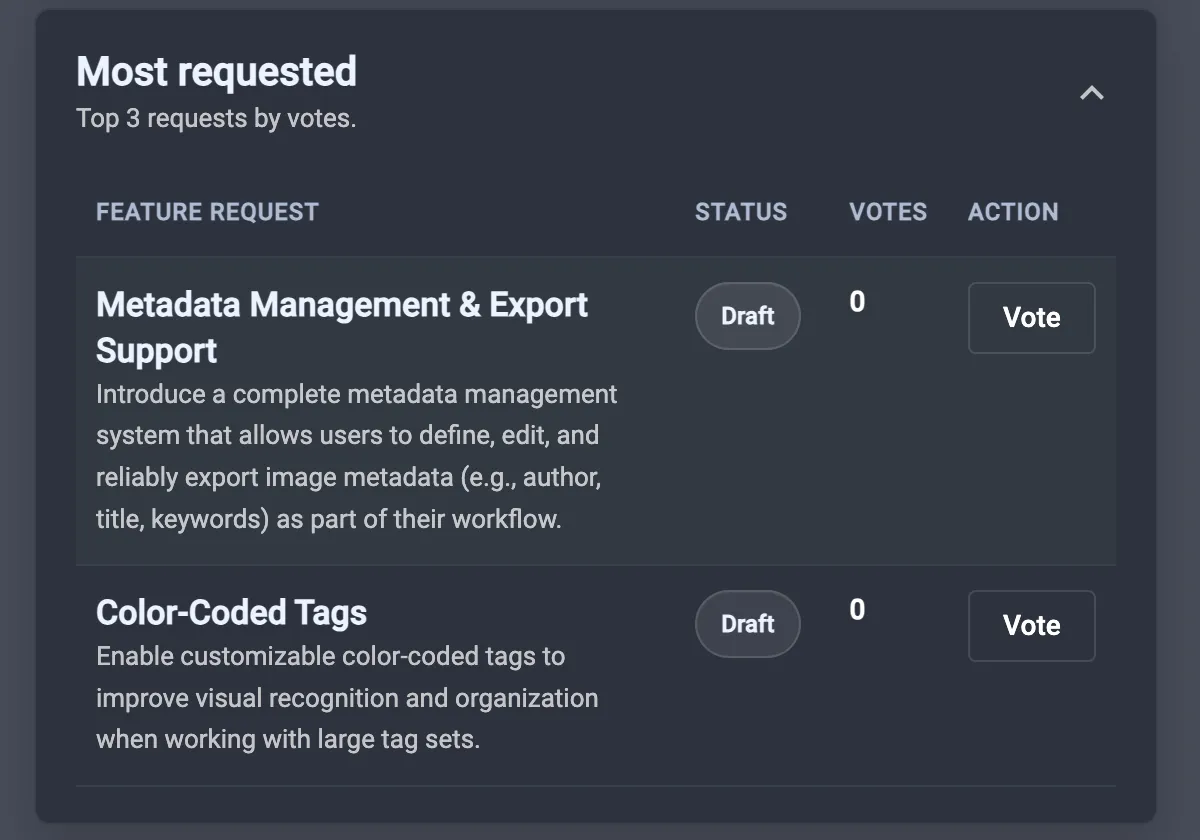
Enim nõutud paneel
Paneelil Enim taotletud klõpsamine avab rippmenüü, mis tõstab esile populaarsust koguvaid taotluspileteid. See võimaldab teil soovi korral oma organisatsiooni hääli laiema kliendihuvi järgi joondada.
Kõikide funktsioonitaotluste paneel
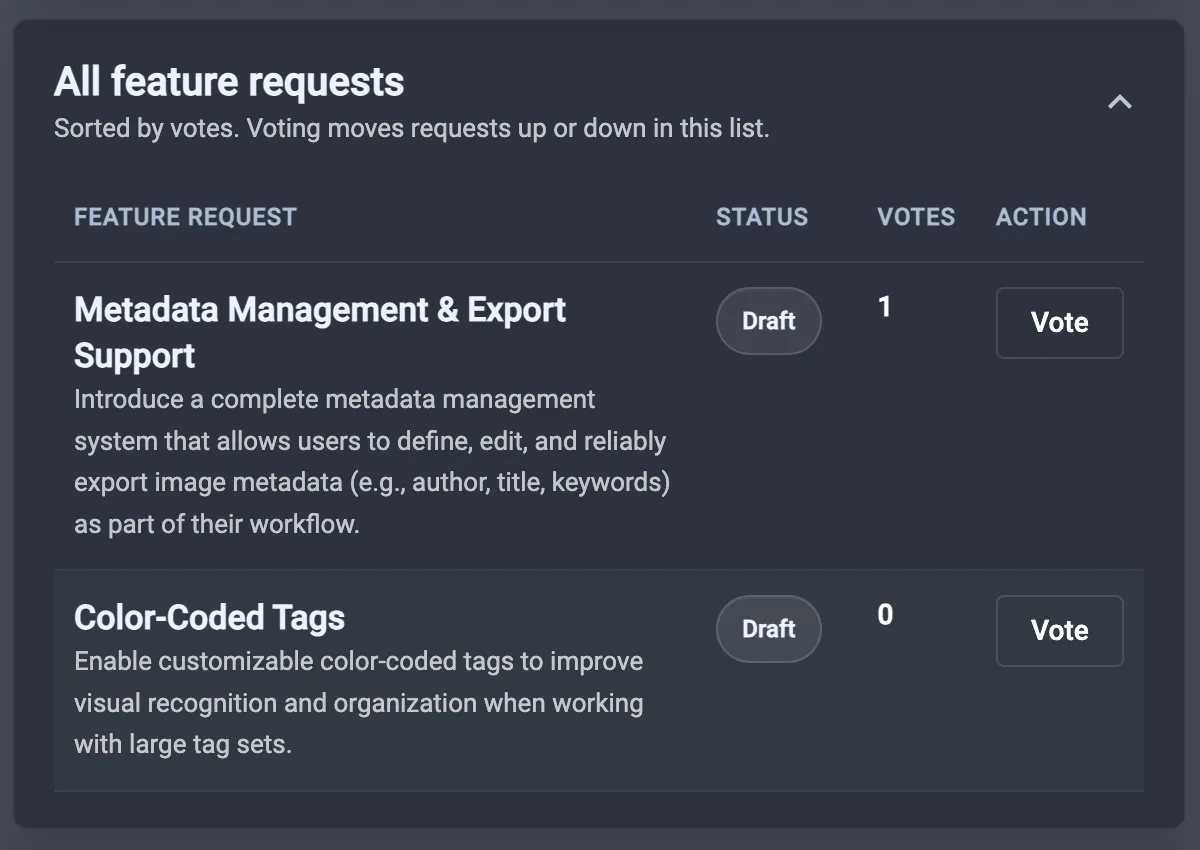
Paneel Kõik funktsioonitaotlused kuvab üksusi hääletuste arvu järgi. Samal ajal liigutab hääletamine üksusi nimekirjas üles või alla sõltuvalt hääletuste koguarvust.
3 - Kuidas hääletada olemasolevate funktsioonitaotluste poolt
Olemasolevate funktsioonipäringute hääletamiseks leia konkreetne funktsioon kas enim soovitud paneeli või kõigi funktsioonide taotluste paneeli kaudu. Iga funktsioonipäring sisaldab nelja veergu, mis kirjeldavad funktsiooni, kuvavad selle staatust, näitavad häälte arvu ja annavad hääli.
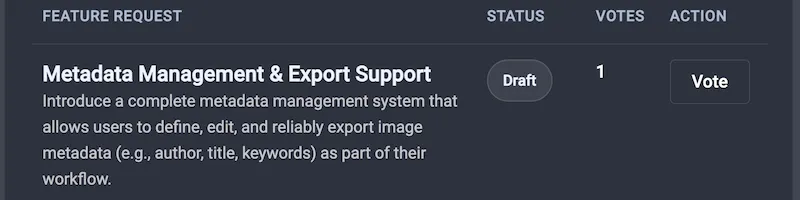
Seal on funktsiooni pealkiri lühikese kirjeldusega, samas kui staatus annab teada, kas taotlus on ülevaatamisel, planeerimisel, arenduses või juba avalik. Staatus võib samuti anda teada, et oleme otsustanud konkreetse taotluse praegu peatada või mitte jätkata.
Päringu oleku kõrval on selle päringu häälte arv ja tegevuste veerg kasutajatele hääle andmiseks. Klõpsake Hääleta, et kasutada ühte oma organisatsiooni saadaolevatest häältest, või tühistage hääl, klõpsates uuesti hääletamisnupul.
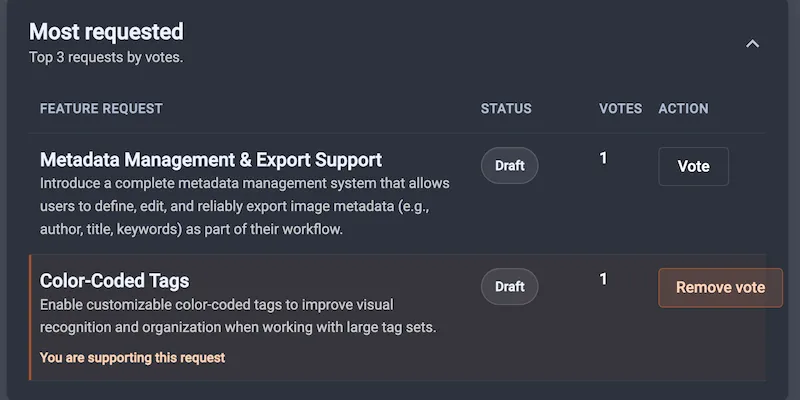
Märkus: Saadaolevate häälte koguarv on seotud teie organisatsiooniga, mitte üksikisiku isikliku kontokvoodiga. Üksuse poolt hääletades vahetate ühe oma organisatsiooni saadaolevatest häältest, kuni taotlus jõuab suletud tulemuseni. Näiteks võivad suletud tulemused hõlmata “välja antud” või “praegu plaanis mitte”. Sel hetkel ei pruugi hääletusreeglid enam selle konkreetse kirje kohta kehtida.
4 - Kuidas esitada uusi funktsioonitaotlusi
Peamenüüs klõpsa "Esita funktsioon" , et avada dialoogiaken uute funktsioonisoovide esitamiseks.
Dialoogiboks nõuab kasutajatelt selge teema (pealkirja) sisestamist funktsioonitaotlusele ja probleemi kirjeldust, mida proovite lahendada. Seejärel on võimalik faile lisada enne funktsioonitaotluse loomist.

Pärast nõutud väljade täitmist klõpsa Create feature request , et esitada pilet foorumile.
Esitistest saab seejärel tugipilet, millel on silt, mis märgistab selle funktsioonitaotlusena. See annab PhotoRobot-i meeskonnale aega taotluse üksikasjade ülevaatamiseks, enne kui nad teiega otse ühendust võtavad.
Seejärel ühendame vajadused sageli tahvli elemendiks, mis muutub nähtavaks teistele PhotoRoboti kliendi ökosüsteemis. Pilet jääb ka vestlusesse, et kasutajaid hõlpsasti teavitada, millal nende esitus tahvlil nähtavaks muutub ja millal nad saavad sellele elemendile hääletada.
Märkus: Kui alustate olemasolevast funktsioonitaotlusest, lingitakse teie pilet automaatselt selle konkreetse taotlusega, et ühendada need kaks kontekstis.
5 - Kuidas jälgida funktsioonitaotluste pileteid
Funktsioonipäringu pileti edenemise jälgimiseks on tugipileti külgribal kaart päringu jaoks.
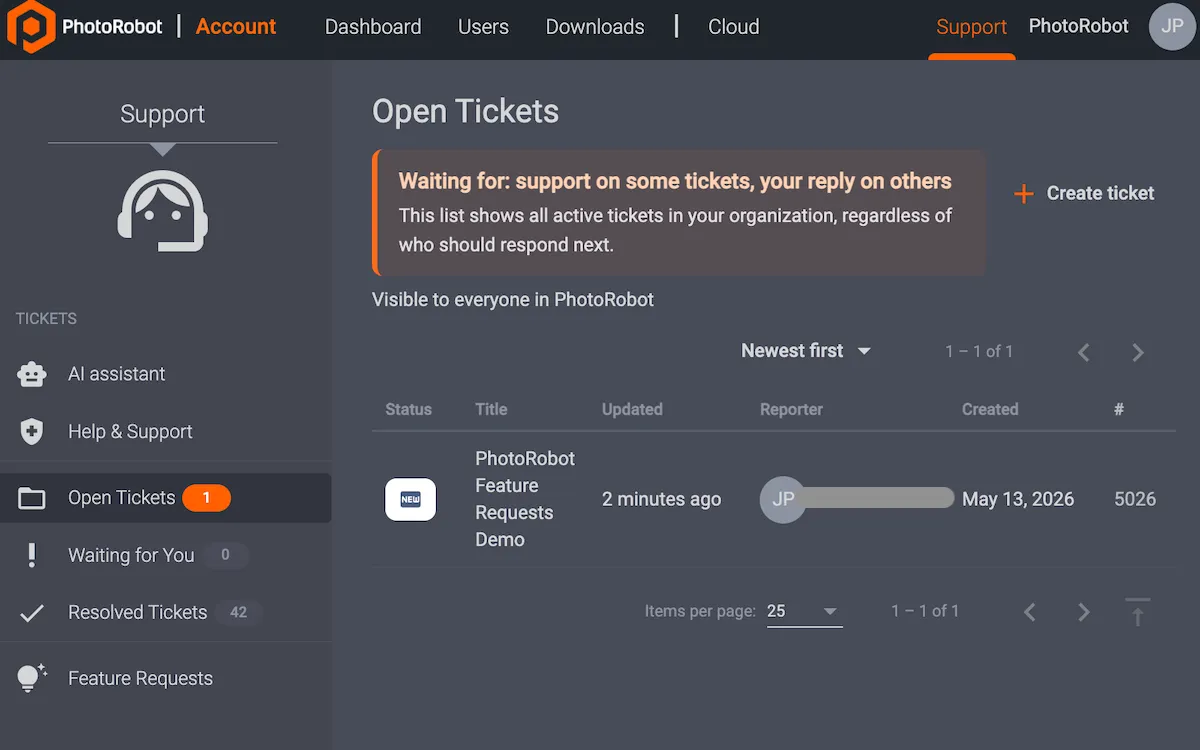
Kaart kuvab taotluse avalikku pealkirja, kokkuvõtet ja staatust ning võimalust avada tahvli kirje uues kontekstis. See aitab tagada selge orientatsiooni, ilma et peaks õiget sissekannet otsima.
6 - Kuidas PhotoRobot rakendab uusi funktsioonisoove
Igal taotlusel on otsene mõju sellele, mida me järgmiseks prioriseerime ja planeerime. Pange tähele, et tahvlil olevad üksused ei kujuta endast kohustust. Samuti käsitleme funktsioonipileteid tahtlikult teisiti kui ajatundlikke tugipileteid.
See tähendab, et funktsioonipiletid võivad jääda kauem avatuks, kuni me hindame ja ajastame tööd. Lisaks tasub arvestada, et Funktsioonide Päringute Tahvel ei asenda kiiret tuge. Kui tootmine on langenud või sul on blokeerija, ava alati tavaline tugipilet. PhotoRobot reageerib seejärel meie tavapäraste tugitöövoogude kaudu.
Lõppkokkuvõttes eksisteerib Funktsioonide Päringute Tahvel selleks, et sinu tagasiside koondub mõõdetavaks ja et saaksime paremini suhelda. Kasuta oma häält, et kooskõlastada oma organisatsiooni prioriteete, esita ideid, kui juhatus veel sinu juhtumit ei käsitle, ja jälgi staatusi, kui tegevuskava areneb.
PhotoRobot meeskond uuendab regulaarselt tahvlit vastavalt otsuste langemisele, samal ajal kui teie osalus aitab kujundada toodet kogu ökosüsteemi jaoks.
Tugimaterjalid ja teave
Lisateabe saamiseks funktsioonitaotluste tahvli kohta vaadake PhotoRobot juhtimisseadmete kujundamisele kaasaaitamine. PhotoRobot Controls rakenduse kasutamise lisatoe saamiseks vaadake PhotoRobot alustamine, et saada täielik ülevaade tarkvarast ja selle kasutusest.


EOS Rebel seeria


EOS DSLR-seeria


EOS M peeglita seeria


PowerShot seeria


Lähivõte / käeshoitav

Canon EOS Rebel seeria pakub algajasõbralikke digipeegelkaameraid, millel on kindel pildikvaliteet, intuitiivsed juhtnupud ja mitmekülgsed funktsioonid. Need kaamerad, mis sobivad ideaalselt fotograafiahuvilistele, pakuvad usaldusväärset autofookust, muudetava nurgaga puuteekraane ja Full HD või 4K videosalvestust.
Ühendus
Eraldusvõime (MP)
Otsus
Canoni EOS digipeegelkaamerate seeria pakub kvaliteetseid pilte, kiiret automaatteravustamist ja mitmekülgsust, muutes selle ideaalseks nii fotograafia kui ka videote tegemiseks.
Ühendus
Eraldusvõime (MP)
Otsus
Canoni EOS M peeglita seeria ühendab kompaktse disaini digipeegelkaameraga sarnase jõudlusega. Vahetatavate objektiivide, kiire autofookuse ja kvaliteetsete pildianduritega kaamerad sobivad suurepäraselt reisijatele ja sisuloojatele, kes otsivad kaasaskantavust ilma pildikvaliteeti ohverdamata.
Ühendus
Eraldusvõime (MP)
Otsus
Canoni PowerShoti seeria pakub kompaktseid ja kasutajasõbralikke kaameraid juhuslikele pildistajatele ja entusiastidele. Mudelid, mis ulatuvad lihtsatest sihi-ja-pildista kuni täiustatud suumkaamerateni, pakuvad mugavust, kindlat pildikvaliteeti ja selliseid funktsioone nagu pildistabilisaator ja 4K-video.
Ühendus
Eraldusvõime (MP)
Otsus
Canoni lähivõtete ja käeshoitavad kaamerad on loodud üksikasjalikeks, lähedalt pildistamiseks ja videote tegemiseks. Kompaktsed ja hõlpsasti kasutatavad need pakuvad täpset teravustamist, kõrge eraldusvõimega pildistamist ja mitmekülgseid makrofunktsioone – ideaalsed vlogimiseks, tootepildistamiseks ja loomingulisteks lähivõteteks.


